|
<< Click to Display Table of Contents >> Calendar |
  
|
|
<< Click to Display Table of Contents >> Calendar |
|
Set default Calendar options here.
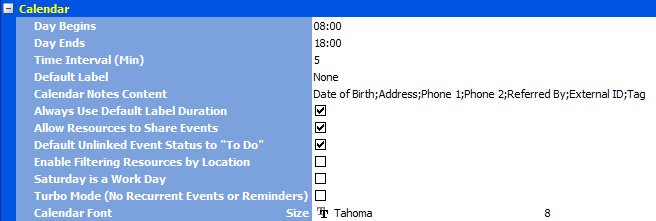
•Day Begins: Sets the normal starting time for Day Sheets
•Day Ends: Sets the normal ending time for Day Sheets
Begin and End times should be recorded in 24-hour format. Times outside the working day (non-working hours and weekends) are coloured differently from the rest of the Day Sheet.
•Time Interval: Sets the length of time slots in Day Sheets. Users can temporarily override the Time Interval by right-clicking on the Time Bar in the Calendar
•Default Label Sets the default appointment type/label when creating a new appointment
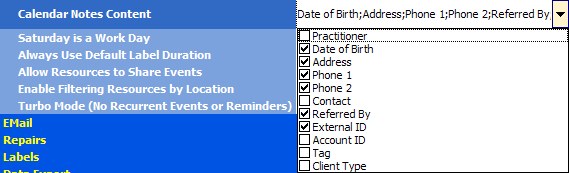
•Calendar Notes Content: Sets the items which will be automatically added to the Notes section of an appointment. Drop down the check list and tick the items you want to include Note: you can also set the content for an individual appointment within the appointment editor
•Always Use Default Label Duration will automatically adjust the event duration according to the default time allowance set in Lists|Calendar Labels for the selected event label
•Allow Resources to Share Events sets up event/appointment sharing, so that a single appointment entry will appear in multiple resource columns on the calendar sheet; any changes to an event in one column are immediately reflected in the others
•Default Unlinked Event Status to "To Do" will automatically set the status of new events to To Do if there is no client linked to the event and the new event's status is Appointment. This will ensure that events that are not linked to a specific client will not distort calendar analyses. The status can be changed at any time once it has been saved
•Enable Filtering Resources by Location: If this box is ticked then selecting a Location in the Location box on the main toolbar will also apply the location filter to the visible resources, provided resources have a Location allocated in Lists|Resources
•Saturday is a Work Day when ticked will ensure that Saturdays appear in the Work Days view

•Turbo Mode (No Recurrent Events or Reminders) will provide maximum performance when using the calendar, but this is achieved by ignoring any recurrent events or reminders. Its primary purpose is to allow users to trace possible causes for "slow" performance. Having many Recurrent Events in the calendar is a known performance inhibitor, so when creating recurrent events consider setting end dates and removing any old or redundant Recurrent Events