|
<< Click to Display Table of Contents >> Loans |
  
|
|
<< Click to Display Table of Contents >> Loans |
|
The Loans form is used to store information about loans of devices to clients, including demo or trial devices
The Toolbar:
•Duplicate will copy the current loan record into a new loan
•Add Loan Device provides a shortcut to adding a new device available for loan
•Print Table will print the whole table
•Records of completed loans (ie the devices have been returned) can be removed in Tools|Purge Logs
The Work Area:

1.Click on the Recall form
2.Press the Insert key on the keyboard, or click Insert New Record on the work area toolbar
3.The Client will default to the currently selected client
4.The Issued date will default to today's date
5.Select a Loan Device from the drop-down list (Loan devices must have been entered in Lists|Loan Devices). Only devices that are not currently on loan will be available in the list
6.Press Ctrl+S on the keyboard, or click Save Changes on the work area toolbar
To Edit an existing record, or record when a loan device is returne:
1.Click on the Form
2.Press Ctrl+Insert on the keyboard, or click Edit on the work area toolbar
3.Modify the details - if a loan device is being returned, enter the Returned date
4.Press Ctrl+S on the keyboard, or click Save Changes on the work area toolbar, to save your changes
•Once a device is returned it automatically becomes available for loan again
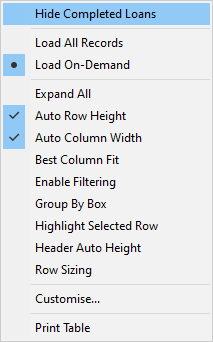
Loan records for completed loans can be hidden by right-clicking on the table and selecting