|
<< Click to Display Table of Contents >> Batch Log |
  
|
|
<< Click to Display Table of Contents >> Batch Log |
|
The Toolbar:
The Work Area:

The Batch Log lists e-Claim batches, adding them to the table as they are prepared. Information is updated as batches are uploaded and downloaded from HSO and after they are reconciled. The Batch Log also stores a copy of each batch file, so in the event of a problem with a batch file the Batch Log can be used to recreate a batch.
•To view the Accepted or Rejected items for any batch that has been downloaded and reconciled, click on the batch row, then click either Accepted or Rejected in the Program Navigator
•Response Received, Response File, Accepted, Rejected, Amount Due and Tax are updated when a response file is Reconciled
•Ticking the Show e-Claim Summaries box in Tools|Options|e-Claimswill display a summary bar at the bottom of the Batch Log which shows the total value of Accepted and Rejected items
•As each batch is prepared and reconciled, copies of the batch file are stored in Batch and can be used to recover accidentally lost files if needed. Response files can be downloaded any number of times, at any time

Right-clicking on a Batch Log row will display a pop-up menu.

The top two items of the pop-up menu are shown above
•Recreate Batch File will regenerate the batch file from the Batch Log record and save it into the EClaims folder
•Clean EClaim Folders will delete all batch and response files
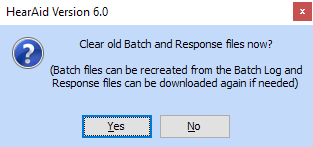
This message will also appear after a batch is reconciled; normally it is quite safe to click Yes in this dialog, unless you have downloaded multiple response files, or prepared batch files but reconciled previous batch files before uploading the latest batch
In any event, batch files can always be recreated from the Batch Log and, under the new HSP Portal claiming system, response files can always be downloaded again
