|
<< Click to Display Table of Contents >> Reconcile |
  
|
|
<< Click to Display Table of Contents >> Reconcile |
|
HearAid's electronic claim reconciliation provides users with a powerful tool for keeping on top of e-claims. Response files must always be downloaded and saved into the ..\EClaims\Response Files folder
The Toolbar:

•Reconcile Claims processes the selected response file
•Update Response File List refreshes the list of response files. Click this button if the Reconcile work-area was open while response files were downloaded from the HSO web site
•Print Claim List prints the list of claims processed in the Response File. Note that since the implementation of the claim processing system in the HSO portal, the response files no longer contain GST data and you must use e-Claims|Accepted in order to view that information
Note: Since e-Claiming has been moved to a new system through the HSP Portal, Response files no longer include any tax information; in order to view tax amounts for paid claims you need to view the Accepted items window
The Work Area:

1.Click on the Response File Name in the list
2.Click the Reconcile Claims button on the toolbar
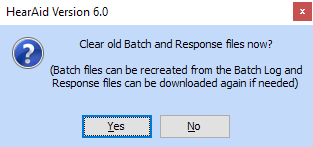
3.You will be asked if you want to clear old batch and response files; click Yes if you have processed all outstanding batch response files
Reconciliation processing
1.Opens the response file
2.Reads the batch number from the first line
3.Reads each line in turn and finds the claim based on the CLAIM_PK that is used as the claim identifier in the outgoing batch
4.If the Response record for the claim is tagged Approved the Processing flag is cleared and the claim is marked as Paid
5.If the Response record for the claim is tagged Rejected the Processing flag is cleared and the error message is stored with the claim
•Accepted claims are shown with a green background
•Rejected claims have a pale yellow background and the description of the reason for rejection is clearly displayed
•Missing claims and clients have an orange background. HearAid will automatically recreate missing clients and claims as part of the reconciliation process
oA claim will be listed as missing if the program cannot find a claim with a CLAIM_PK which matches the response record. Recreated claims will have UNKNOWN in Site, Practitioner and Authorised Person fields
oA client will be listed as missing if the program cannot find a client with a matching HSP number (excluding the voucher date part of the number). Missing clients that are recreated will be given the Family name **UNKNOWN CLIENT** and Given name **Recreated**
Because the reconciliation process matches claims based on the CLAIM_PK users should NOT delete claims that are flagged as Processing! HearAid will try to prevent you from doing that...
•Once the reconciliation has completed, click on Accepted or Rejected in the Program Navigator to display the lists of accepted and rejected items for the batch
•If you cannot see a response file for a batch it is most likely that the file was downloaded and saved to the wrong folder