|
<< Click to Display Table of Contents >> Repairs |
  
|
|
<< Click to Display Table of Contents >> Repairs |
|
The Toolbar:
•Print Repair Order prints a generic repair order form
The Work Area:
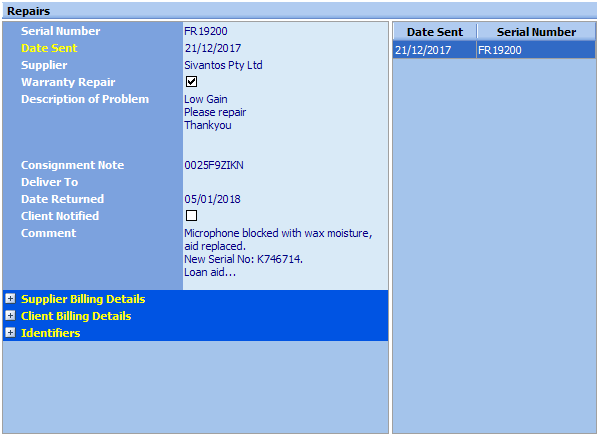
1.Click on the Repair form
2.Press the Insert key on the keyboard, or click Insert New Record on the work area toolbar
3.Select a device Serial Number from the pick list. The default Supplier and Warranty Repair items will be determined from the Fitting record. If there is no fitting record you will need to enter those details manually
4.Enter a brief Description of the problem
5.Enter a Consignment Note number if required
6.Enter a Deliver To address (Site addresses must have been entered in Lists|Sites); the address of the client's Location will be used by default. If no address is entered the Delivery Address entered in Providers & Practice for the Default/Selected Provider will be used
7.Press Ctrl+S on the keyboard, or click Save Changes on the work area toolbar
8.Print the repair order
To Edit an existing record:
1.Click on the Form
2.Press Ctrl+Insert on the keyboard, or click Edit on the work area toolbar
3.Modify the details and press Ctrl+S on the keyboard, or click Save Changes on the work area toolbar
Once the device has been returned:
1.Tick the Client Notified box when the client has been advised the device is back
2.Optionally: enter a Comment e.g. describing what the actual fault was
3.Optionally: enter Supplier Billing Details and Client Billing Details
•It may be useful to record the nature of the repair in Comments when the aid is returned
