|
<< Click to Display Table of Contents >> Database & Analysis |
  
|
|
<< Click to Display Table of Contents >> Database & Analysis |
|
The Database & Analysis settings are vital to the proper function of HearAid and access to the database, both on a single computer and across a network. It is essential that these settings are correct!
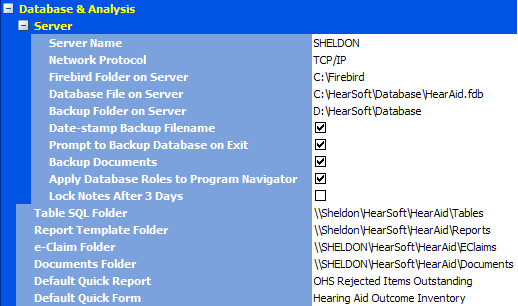
Server:
•Server Name: This setting determines where HearAid looks for the data. In a LOCAL or LOCALHOST configuration, the database is on the same computer as HearAid and it will not be accessed by other computers; if any other name or an IP address is used, HearAid assumes it is running in client/server mode and looks for the database server connection on the named computer. If that computer is not running the Firebird server (either as a service or an application) HearAid will not start properly! The Server Name can be either an IP address such as 192.168.0.2 or 127.0.0.1 (ie LOCALHOST), or a valid network name such as SERVER, FRONT_OFFICE, LINDSAY, etc. See the Firebird Database Engine topic for further information
•Network Protocol: The Firebird Database Server can work in client/server mode using either the TCP/IP protocol, or NetBEUI. As a general rule, we recommend using TCP/IP as your network protocol
•Firebird Folder on Server: If HearAid is running in a client/server configuration, the Firebird Database Server will be installed on a "server" computer (ideally a dedicated server computer which is not in active use). HearAid needs to know where Firebird has been installed on the server so that it can access several vital files. This folder setting must refer directly to a physical drive on the server (eg C:\Firebird) and must NOT use a mapped network drive name (eg Z:\Firebird, where Z: is a mapped network drive) or UNC path (eg. \\Server\Drive C\Firebird, or 192.168.0.2\Drive C\Firebird)
•Database Path on Server: This must be a real path to the HearAid.fdb file on the server. If the default installation has been used, the path will be C:\HearSoft\Database\HearAid.fdb, but in the example shown here it has been located on a second physical drive (drive D) on the server. This setting will also allow an database with a different name to be used instead, as long as the structure of that database is identical to HearAid.fdb!
•Backup Folder: This folder specifies where HearAid will put its backup file. In client/server or LOCALHOST mode, this must be a real path to a folder on a physical drive on the server. In LOCAL mode, this can be any real folder, even one on another computer on the network
•Prompt to Backup Database on Exit: When this box is not ticked the prompt for the last user to exit HearAid to make a backup is switched off. Switching off this prompt is ONLY recommended if users have set up a batch file to perform database backups as a Windows Scheduled Task!
•Backup Documents will backup all the external documents in the ..\Documents folder (or ..\Scanned Documents folder in older installations) into a zip file in the backup folder
•Apply Database Roles to Program Navigator: Program Navigator groups' visibility can be more finely controlled using the Firebird.ini file, so that a logged in user with a PUBLIC role may only see the “Client” and “Calendar” groups, a POWER user may also see the “e-Claims” group, while an ADMINISTRATOR will be able to see all groups. As a consequence of this change, setting the Base Work-Area user-preference has been moved to the pop-up menu for the Program Navigator. The Tools|Security work-area has also been updated to facilitate role selection for users. User roles are set in Tools|Security
•Lock Notes After 3 Days: Use this setting to provide audit control over Notes. When this box is ticked users cannot edit or delete existing notes more than 3 days after the note was created
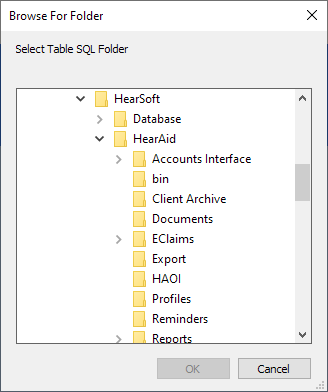
•When setting the Table SQL, Report Template and EClaims folders on a network a UNC Path should be used in preference to mapped network drives
•To set the UNC Path to a folder on the server:
1.Click the button at the right-hand end of the edit box

2.Navigate to the shared folder on the server via Network
•Tables SQL Folder contains SQL scripts used when HearAid connects to the database. Generally there is no need to add extra scripts to this folder other than those installed with HearAid
•Report Template Folder: Tells HearAid where to find Report Templates (whether or not they are common to all users or separate for each user. Network installations must use a UNC path.
•e-Claim Folder: This folder is where HearAid looks for batch files to upload and response files to reconcile. Network installations must use a UNC path. HearAid will not look anywhere else and all batch files and response files MUST be stored here
•Default Quick Report: Sets the Quick Report template which is run if the Quick Reports button on the toolbar is clicked, rather than the drop-down button
•Default Quick Form: Sets the Quick Form which is generated if the Quick Form button on the toolbar is clicked, rather than the drop-down button
When specifying folders and file paths, it is advisable to use the drop-down folder tree list box to navigate to the correct folder or file
Once all the Database & analysis settings have been set properly and saved, the settings are stored in Firebird.ini in the same folder as HearAid7.exe (..\HearSoft\HearAid for the default installation). Firebird.ini can then be copied to other computers on the network if it is planned to install HearAid7.exe on the workstations in order to reduce network traffic.