|
<< Click to Display Table of Contents >> HearAid-AudZone Interface |
  
|
|
<< Click to Display Table of Contents >> HearAid-AudZone Interface |
|
HearAid integrates with AudZone, an online audiology practice management and form platform. The integration allows you to:
•Automatically import patient forms and reports from AudZone directly into HearAid as Notes
•Automatically save filled PDF documents from AudZone into the client's Documents folder in HearAid
•Keep your HearAid client records up to date without manual re-entry
Before using the AudZone integration, a one-time setup is required:
1. Deploy the AudZone Connector App
The AudZone integration runs via a small background application that handles communication between HearAid and AudZone. This application must be deployed on the server or workstation that runs HearAid.
Contact your HearAid administrator or support team if you are unsure whether this has been done.
2. Configure the Interface in HearAid
•Open HearAid and go to Tools | Options | Interfaces | AudZone
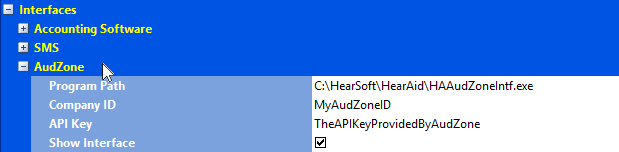
•Fill in the following fields:
Field |
Description |
Program Path |
The full path to the AudZone connector application on your system |
Company ID |
Your AudZone Company ID (provided by AudZone) |
API Key |
Your AudZone API Key (provided by AudZone) |
•Tick the Show Interface checkbox to make the AudZone app visible while it is running, like this
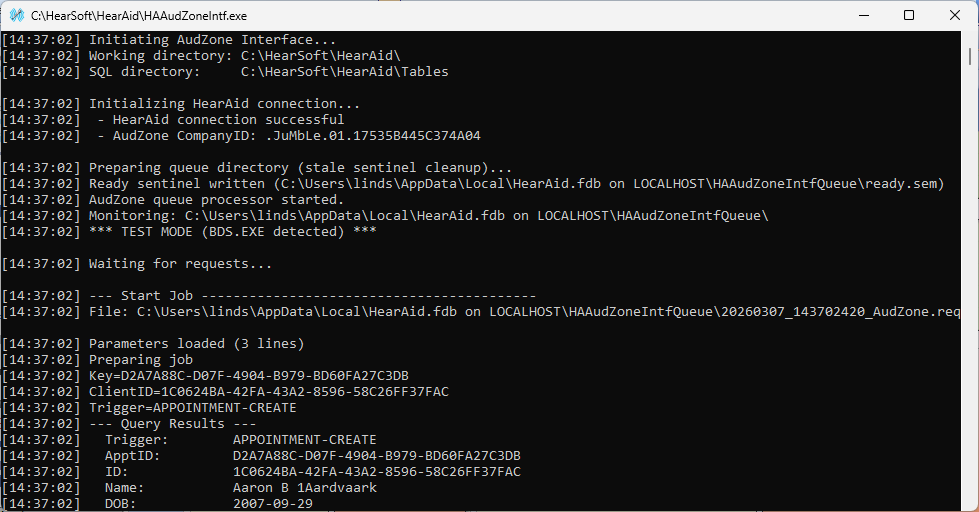
It is not normally necessary to show the interface window, but it may be helpful if trying to trace errors
•Click OK to save
Note: Your Company ID and API Key are provided by AudZone when you set up your AudZone account. If you do not have these details, contact AudZone support.
Background Synchronisation
Once configured, HearAid periodically checks AudZone for completed exports on behalf of your clients. This happens automatically in the background — you do not need to manually trigger it.
When AudZone has completed content ready for a client, HearAid will:
1.Download the content from AudZone
2.Save it to the correct location in HearAid
3.Acknowledge the receipt with AudZone so the same content is not imported twice
What Gets Imported — and Where
Notes
Completed text-based reports and forms (such as consultation summaries and clinical notes) are imported into the client's Notes in HearAid.
•The note is created with the type AudZone
•The note date is set to the date of import
•If the practitioner who completed the form in AudZone matches a practitioner in your HearAid system, they will be automatically linked to the note
•If a note for the same content has been imported before (e.g. an updated version), HearAid will update the existing note rather than creating a duplicate
Documents
Completed PDF documents (such as filled-in assessment forms or consent documents) are saved to the client's Documents in HearAid.
•The document is saved to your local Documents folder and linked to the client record
•The document type is recorded as AudZone
•The document name is taken from the title given in AudZone
Typical Workflow
1.Complete forms and assessments in AudZone as part of your normal clinical workflow
2.Open the client record in HearAid — imported notes and documents will appear automatically once synchronisation has run
3.Check the client's Notes tab for imported clinical notes and reports
4.Check the client's Documents tab for any imported PDF forms or assessments
Things to Keep in Mind
•Synchronisation is automatic — you do not need to press a button to trigger imports
•Duplicates are prevented — if AudZone sends an updated version of a document, HearAid updates the existing record rather than creating a new one
•Practitioner matching is automatic — if your AudZone provider names match the names in HearAid's practitioner list, they will be linked correctly. If a name does not match (e.g. due to a spelling difference), the note will still be imported — just without a practitioner link
•Failed imports are logged — if anything goes wrong during an import, it is recorded in the HearAid log. Contact your administrator if you notice missing content
Symptom |
What to Check |
No AudZone content appearing in HearAid |
Confirm the interface is enabled in Tools | Options | Interfaces | AudZone and that the connector app is running |
Notes importing without a practitioner linked |
Check that the provider's name in AudZone exactly matches their Given Name and Family Name in HearAid's practitioner list |
Documents not appearing |
Check that the Documents folder path is accessible and that HearAid has permission to write to it |
Duplicate notes appearing |
Contact support — this may indicate the acknowledgement step is not completing correctly |